Features
Real care, connected operations
Schedule visits, share care instructions, manage your team and bill clients in one workspace.
All screenshots on this page show a demo business with sample clients, pets and team members.
01 Routes and dispatch
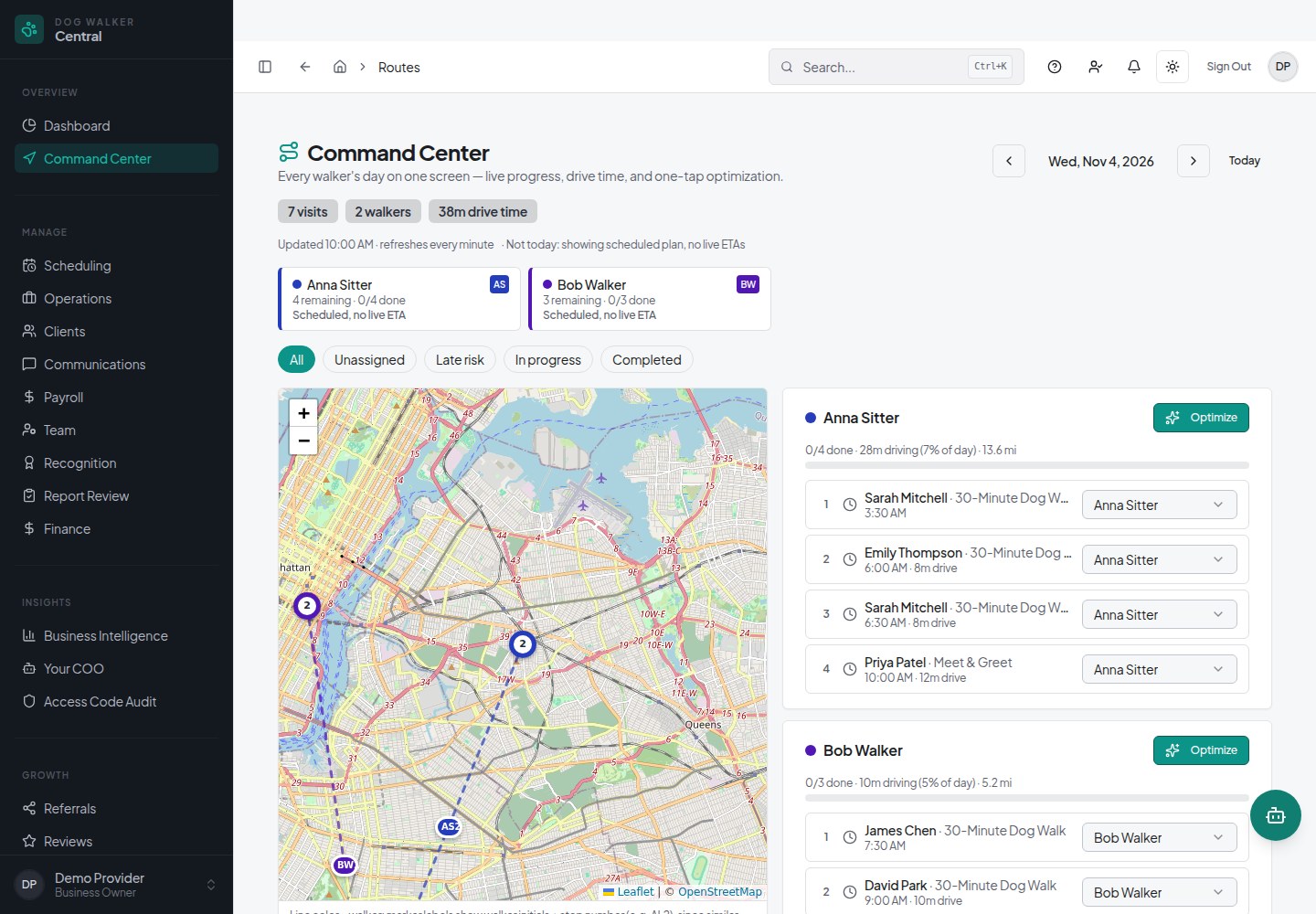
Plan each walker’s route. Review before applying.
- PreviewSee the proposed stop order and drive-time change. Apply it only when it looks right.
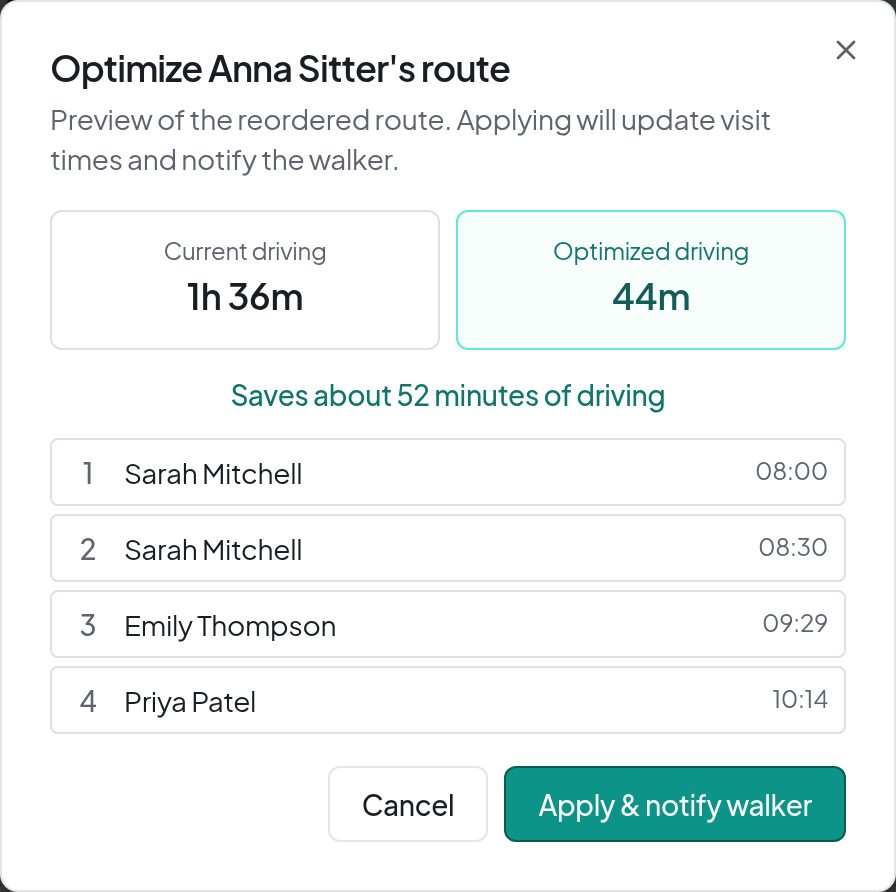
Route preview Current and proposed drive time — an example, not a guaranteed saving Full image - You decideOptimization shows a preview of the proposed order and drive time. Routes change only when you apply the preview.
-
Route preview Proposed order, then Cancel or Apply Full image
Auto-Assign (paid). Proposes walker assignments that group nearby stops; review before accepting. Explore routes and dispatch
02 Scheduling and calendar
Manage visits, booking rules and rates.
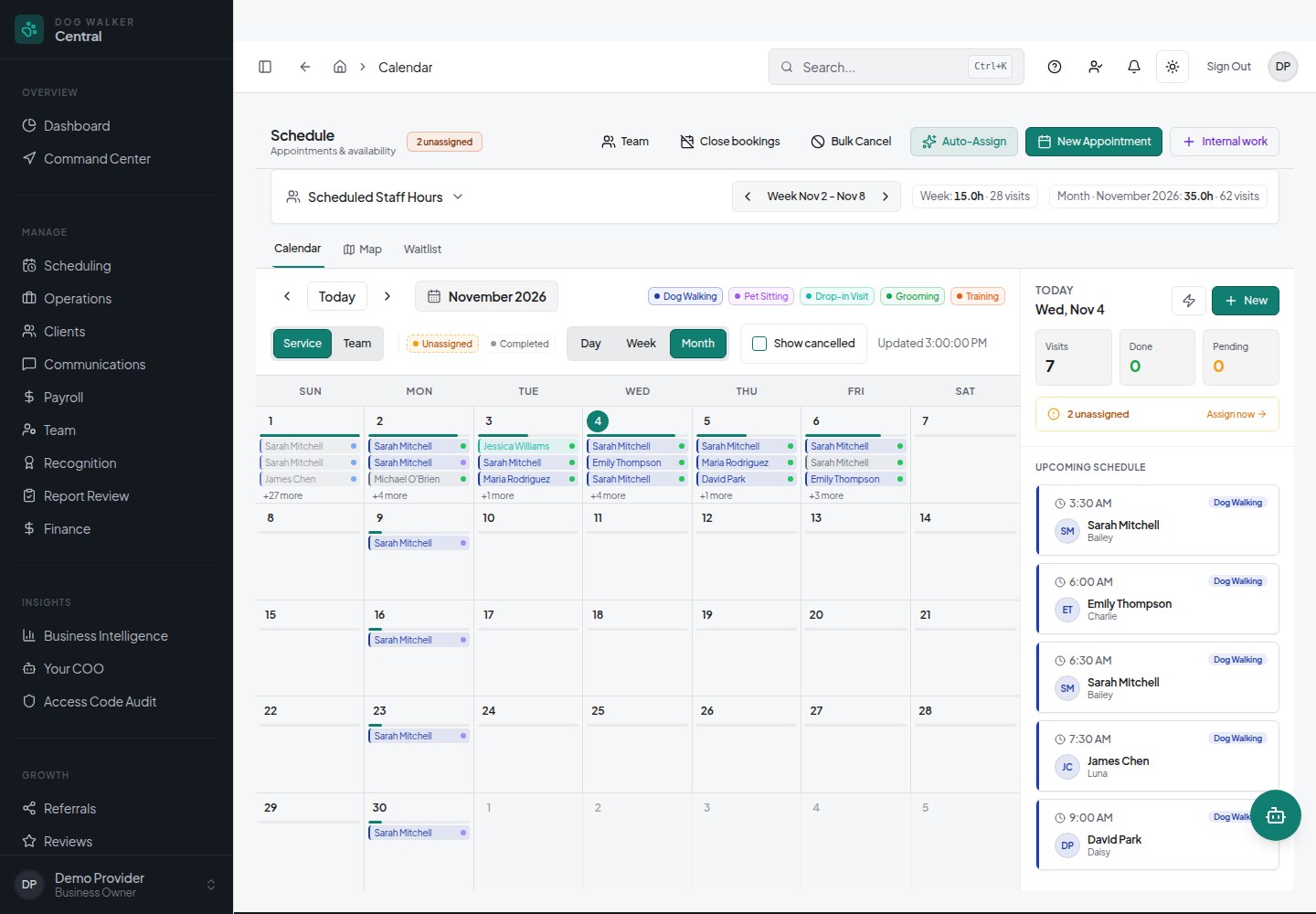
- Calendar viewsDay, week and month views of your appointments.
- Recurring appointmentsWeekly, bi-weekly or custom schedules edited as a series or one visit at a time.
- Public bookingChoose which services and hours new clients can request from your profile.
- Service packagesSell bundles of visits and track what remains.
- Holiday and custom ratesRate overrides for holidays, weekends or specific time windows.
- Multi-pet pricingAdditional-pet fees per service, flat or per pet.
- Cancellation rulesSet your cancellation policy and any applicable fees.
03 Clients and pets
Keep client and pet details together.
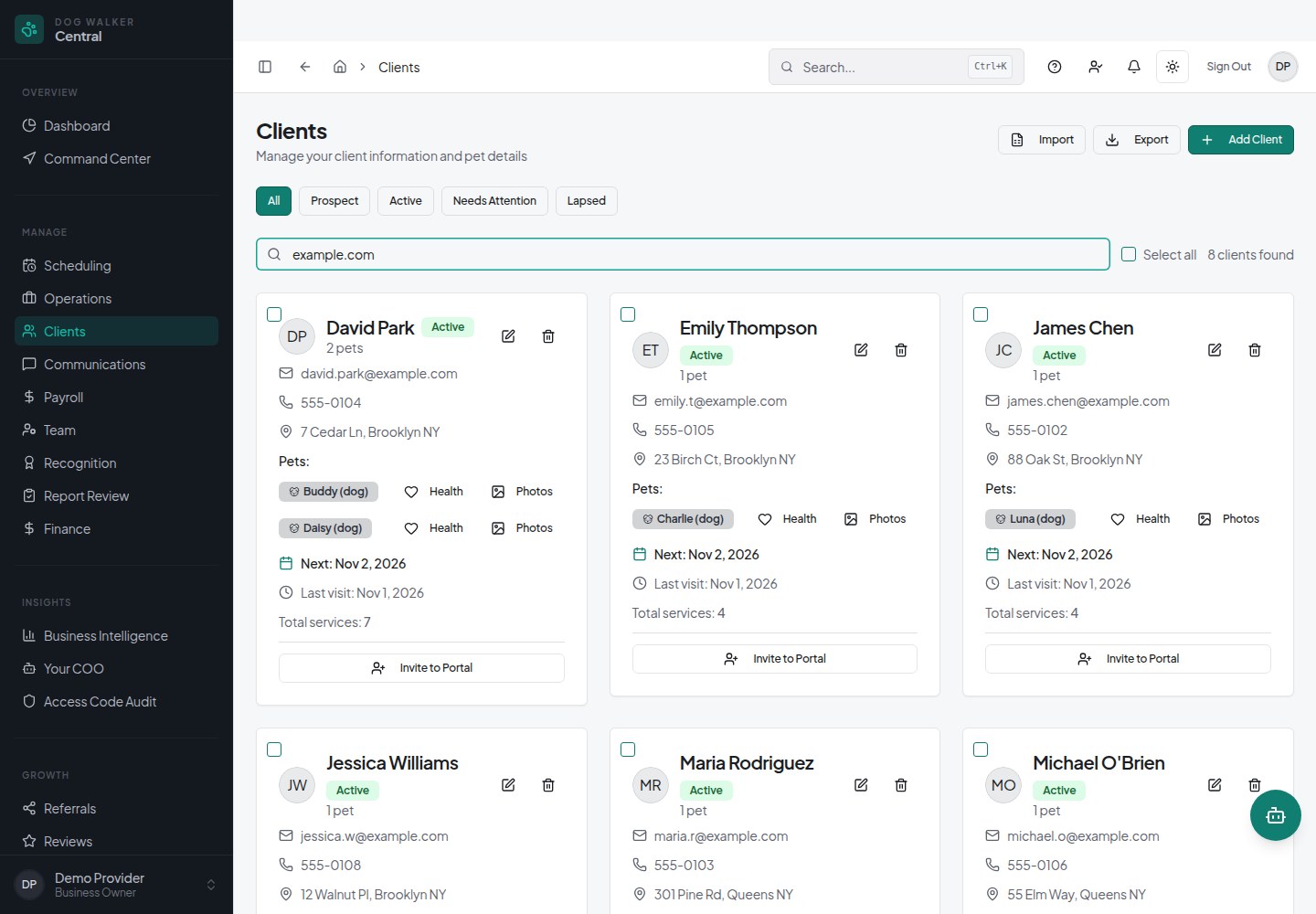
Clients can use their portal to view appointments, invoices and reports. Explore clients and pets
04 Visit check-ins and reports
Save reports. Choose when to notify clients.
See visit duration and short-visit flags in a mobile layout built for a walker’s day. Explore visit check-ins and reports
05 Team operations
Manage access, shifts and team pay.
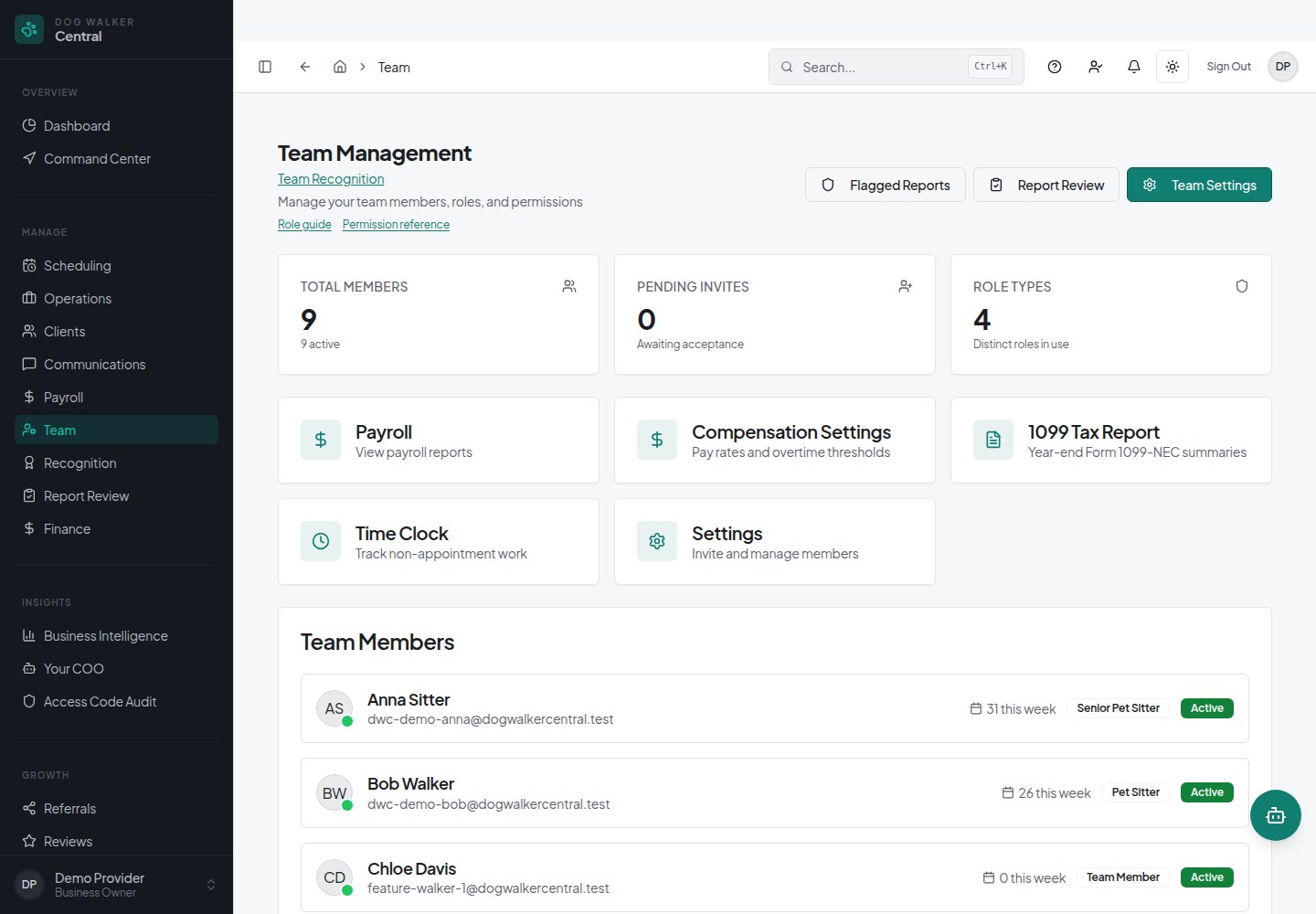
- Team profilesContact details, certifications, services, service radius and capacity.
- PermissionsChoose what each role can see and change.
- Key custodySee who has a client’s physical key. Recipients acknowledge handoffs; managers confirm returns. Keep lost-key and recovery history by branch.
- Availability and time offStaff submit requests; managers approve or decline.
- Shifts and open shiftsPublish shifts, including ones team members can claim.
- Time clock and timesheetsClock in and out, with manager review.
- Pay and payroll reportsResearch the work and rates behind payroll, correct permitted source records or add one-time bonuses and reimbursements, then approve a reviewed local snapshot. Includes summaries and 1099 totals; OnPay sending is not available.
- Team chatGroup and direct messages separate from client messaging.
06 Communication and growth
Set up reminders, follow-ups and review requests.
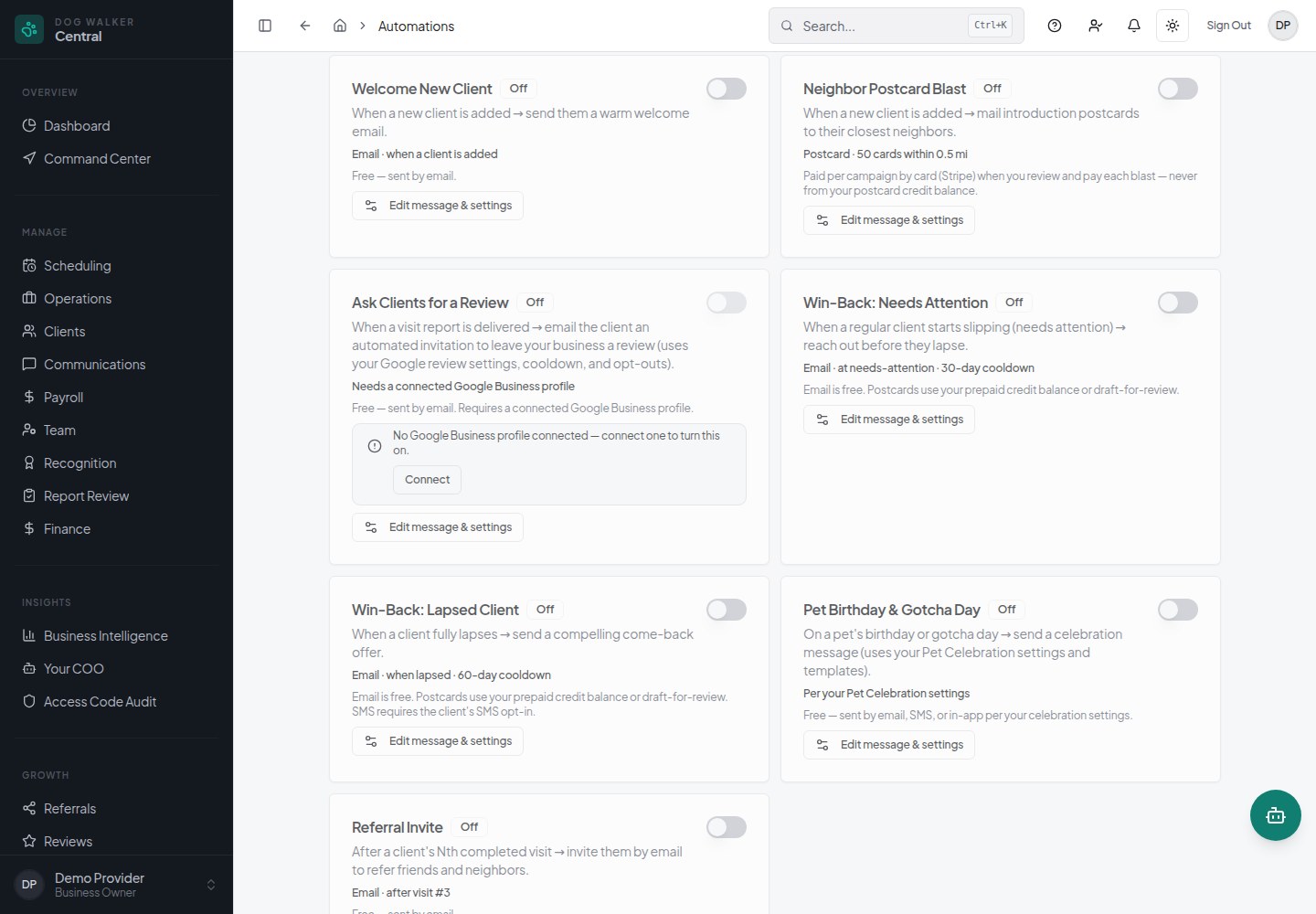
Automations stay off until you enable them.
Use templates for welcome messages, reminders and follow-ups. Review the message and settings before enabling an automation. Consent and opt-outs still apply.
- Appointment reminders Email and text reminders to clients who have opted in.
- Templates Reusable messages for intros, confirmations and follow-ups.
- Bulk and scheduled messages Message a filtered group now or at a set time.
07 Invoicing and payments
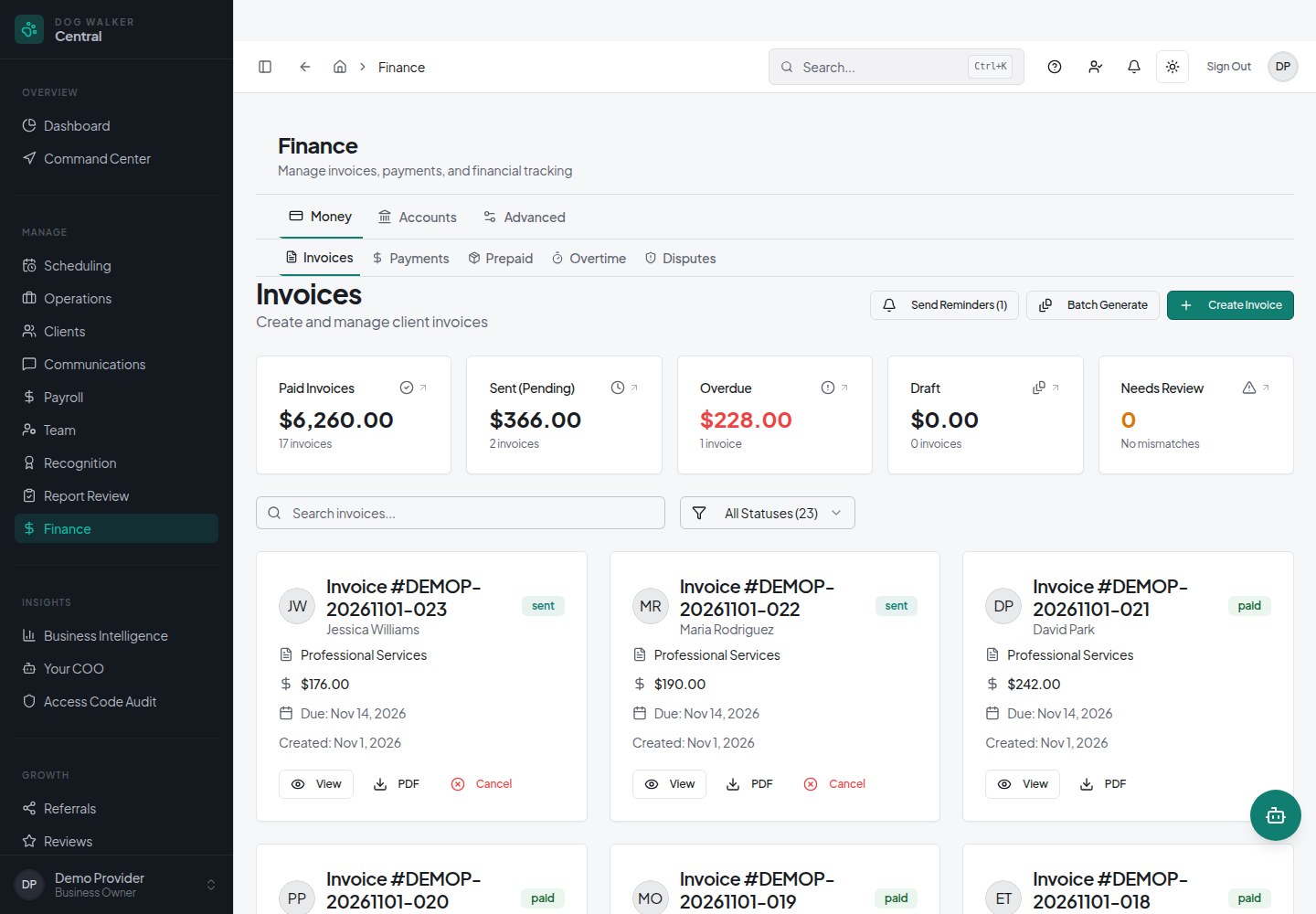
Set invoice timing. Keep payments in view.
- You configureInvoice timingGenerate invoices per visit or on a schedule you choose.
- ClientOnline payments and tipsCard and ACH through Stripe Connect after setup; Stripe processing fees apply. Clients can tip online; distribute tips by rules you set.
- RemindersFollow up on overdue invoicesSee which invoices are overdue and configure reminder sequences.
- RecordsReview payment historyCSV export and a history of payments, refunds and adjustments.
08 Reporting and AI
Track performance. Get help with business questions.
Track revenue, client trends and team workload. On paid plans, use AI for business questions and a daily briefing.
- ReportsGross and net revenue, service mix and month-over-month change. Active and inactive clients and lifetime value. Completion and workload by team member.
- AI assistant (paid)Ask questions about your business data; verify answers before acting.
- Daily briefing (paid)A summary of the day's schedule and items needing attention.
- Review before actingReview AI answers and suggestions before acting.
09 Apps and integrations
Use the mobile apps. Connect your business tools.
Use native iOS and Android apps, or add the web app (PWA) to your home screen. Only saved field report drafts in the native apps are kept offline; check-ins, payments and messages need a connection.
| Feature | Online | Offline |
|---|---|---|
| Saved report drafts (native apps) | Yes | Saved on device |
| Check-in and check-out | Yes | Needs a connection |
| Payments | Yes | Needs a connection |
| Messages | Yes | Needs a connection |
| Installable web app (PWA) | Yes | Needs a connection |
- Google CalendarPush appointments to Google Calendar.
- Google Business ProfileSee and respond to Google reviews.
- Stripe ConnectPayment processing and payouts after setup; Stripe fees apply.
- AI agent access (MCP)Connect a compatible AI agent with scoped access you authorize; review requested actions.
- Data exportExport clients, pets, appointments and invoices.
10 Security and data
Who can see what?
Account owners can export clients, pets, appointments, invoices, services and team members from Security settings. Explore security and data
A closer look
See the full product screens
View the original product screens
Features and team limits vary by plan; AI assistance and Auto-Assign require a paid plan. Online payments require Stripe setup; processing and applicable platform fees apply. Postcards have separate campaign costs. View current plans and fees
Explore features by category
Open a category for the full list of features and a short explanation of each.
Routes and dispatch6 features
The Command Center puts the day's visits and walkers on one map. Optimization shows a preview of the proposed order and drive time first; nothing changes until you apply it.
- Map and list view of the day's visits, color-coded by walker
- Unassigned visits surface in a queue for quick assignment
- Route preview compares drive time before you decide to apply
- Assignment suggestions are proposals for you to review and approve
- Operations map
- Visits and walkers for the selected day on one map, color-coded by team member.
- Status filters
- Narrow the map and list to unassigned, in-progress, or completed visits.
- Route preview
- See the proposed stop order and drive-time change. Apply it only when it looks right.
- Quick reassignment
- Move a visit to a different walker from the Command Center.
- Walker stop list
- Each walker sees their ordered stops and can open directions in their maps app.
- Auto-Assign (paid)
- Proposes walker assignments that group nearby stops; review before accepting.
Scheduling and calendar7 features
Book one-off and recurring visits, see the whole week at a glance, and control when and how clients can book.
- Day, week and month views
- Recurring visits managed as a series
- Booking windows and minimum notice you set
- Calendar views
- Day, week and month views of your appointments.
- Recurring appointments
- Weekly, bi-weekly or custom schedules edited as a series or one visit at a time.
- Public booking
- Choose which services and hours new clients can request from your profile.
- Service packages
- Sell bundles of visits and track what remains.
- Holiday and custom rates
- Rate overrides for holidays, weekends or specific time windows.
- Multi-pet pricing
- Additional-pet fees per service, flat or per pet.
- Cancellation rules
- Set your cancellation policy and any applicable fees.
Clients and pets7 features
Keep care notes, access details, vet information and service history on client and pet records, ready for the next visit.
- Client, household and pet profiles in one place
- Access codes and priority instructions attached to visits
- Client portal for appointments, invoices and reports
- Client profiles
- Contacts, emergency contacts, billing, notes and service history.
- Pet profiles
- Breed, medical and behavior notes, feeding instructions and vet details.
- Health records
- Vaccinations, medications and vet visits per pet.
- Access details
- Key, gate and garage codes stored with the address.
- Intake forms
- Clients answer custom questions in the portal; responses are saved on their profile.
- CSV import
- Bring clients and pets in from a spreadsheet with a guided import.
- Reviews, loyalty and referrals
- Collect reviews and run reward and referral programs you configure.
Visit check-ins and reports6 features
Walkers check in and out with location captured, then write a report with photos and notes. Saving a report does not message the client; use Notify Client when you want them to receive it.
- GPS check-in and check-out with a distance tolerance you set
- Photo and note reports; Save and Notify Client are separate actions
- Flagged reports for manager review; training reports need supervisor approval before sharing
- Check-in and check-out
- Location and time captured at the start and end of each visit.
- GPS tolerance
- Set how far from the address a check-in can be.
- Visit reports
- Photos and notes. Save keeps the report; Notify Client sends it.
- Report review
- Review flagged reports. Training reports require supervisor approval before client sharing.
- Visit duration
- Time from check-in to check-out, with short-visit flags.
- Field view
- Mobile layout for walkers to work through their day.
Team operations8 features
Profiles, permissions, availability, shifts, time and pay for multi-walker businesses, without a separate spreadsheet.
- Role-based permissions per team member
- Availability, time-off, shifts and time clock
- Shifts, timesheets and pay summaries
- Team profiles
- Contact details, certifications, services, service radius and capacity.
- Permissions
- Choose what each role can see and change.
- Key custody
- See who has a client’s physical key. Recipients acknowledge handoffs; managers confirm returns. Keep lost-key and recovery history by branch.
- Availability and time off
- Staff submit requests; managers approve or decline.
- Shifts and open shifts
- Publish shifts, including ones team members can claim.
- Time clock and timesheets
- Clock in and out, with manager review.
- Pay and payroll reports
- Research the work and rates behind payroll, correct permitted source records or add one-time bonuses and reimbursements, then approve a reviewed local snapshot. Includes summaries and 1099 totals; OnPay sending is not available.
- Team chat
- Group and direct messages separate from client messaging.
Communication and growth6 features
Use templates for welcome messages, reminders and follow-ups. Review the message and settings before enabling an automation. Consent and opt-outs still apply.
- Automations stay off until you enable them
- Reminders, templates, bulk and scheduled messages
- Postcard campaigns, billed separately
- Appointment reminders
- Email and text reminders to clients who have opted in.
- Templates
- Reusable messages for intros, confirmations and follow-ups.
- Bulk and scheduled messages
- Message a filtered group now or at a set time.
- Automations
- Event-based messages such as welcome or win-back; off by default.
- Review invitations
- Request a Google review after a visit report is delivered, with a connected Google Business profile.
- Postcards
- Mail to households near existing clients; postage and printing are charged separately.
Invoicing and payments6 features
Set when invoices are created and which billing cycle to use. Connect Stripe so clients can pay online.
- Configurable invoice timing and billing cycles
- Online card and bank payments through Stripe (Stripe fees apply)
- Tips, packages, credits and overdue reminders
- Invoice timing
- Generate invoices per visit or on a schedule you choose.
- Online payments
- Card and ACH through Stripe Connect after setup; Stripe processing fees apply.
- Tips and tip pools
- Clients can tip online; distribute tips by rules you set.
- Packages and credits
- Prepaid visits deduct as they are used.
- Overdue reminders
- See which invoices are overdue and configure reminder sequences.
- Exports and ledger
- CSV export and a history of payments, refunds and adjustments.
Reporting and AI6 features
Revenue, client and team reports, plus an AI assistant on paid plans that answers questions from your data. Treat AI answers as a starting point and check them before acting.
- Revenue, service mix and client trend reports
- AI assistant and daily briefing on paid plans
- Review AI answers and suggestions before acting
- Revenue reports
- Gross and net revenue, service mix and month-over-month change.
- Client trends
- Active and inactive clients and lifetime value.
- Team performance
- Completion and workload by team member.
- AI assistant (paid)
- Ask questions about your business data; verify answers before acting.
- Daily briefing (paid)
- A summary of the day's schedule and items needing attention.
- Rate calculator
- Free tool to think through pricing for your area.
Apps and integrations8 features
Use native iOS and Android apps, or add the web app (PWA) to your home screen. Only saved field report drafts in the native apps are kept offline; check-ins, payments and messages need a connection.
- Native iOS and Android apps
- Installable web app (PWA) on any device
- Offline support covers saved report drafts only
- Native mobile apps
- iOS and Android apps for walkers and managers.
- Installable web app
- Add the web app to a home screen; requires a connection.
- Offline drafts
- The native apps keep saved field report drafts on the device when offline. Check-in, payments and messages need a connection.
- Google Calendar
- Push appointments to Google Calendar.
- Google Business Profile
- See and respond to Google reviews.
- Stripe Connect
- Payment processing and payouts after setup; Stripe fees apply.
- AI agent access (MCP)
- Connect a compatible AI agent with scoped access you authorize; review requested actions.
- Data export
- Export clients, pets, appointments and invoices.
Security and data5 features
Separate logins for your team and your clients, permissions you control, and card data handled by Stripe rather than stored by your business.
- Role-based permissions enforced on the server
- Separate authenticated client portal
- Account owners can export supported business records
- Permissions
- Roles control what each team member can see and change.
- Client portal
- Clients sign in to their own portal, separate from your team workspace.
- Card handling
- Payments processed by Stripe; card numbers are not stored by your business.
- Access-code audit
- Review recorded access-code views for your business.
- Data export
- Account owners can export clients, pets, appointments, invoices, services and team members from Security settings.
Questions about how it works
What is dog walking company software?
It is the system a dog walking business uses to run the day: scheduling visits, assigning and routing walkers, recording visits, invoicing clients, and managing the team. Dog Walker Central covers these for solo walkers and multi-walker teams.
Does saving a visit report notify the client?
No. Save and Notify Client are separate actions. Choose Notify Client when you are ready to share; training reports must first pass supervisor review. Delivery depends on the configured channels and delivery outcome.
Does route optimization change my schedule automatically?
No. Optimization shows a preview of the proposed order and drive time. Routes change only when you apply the preview.
When are invoices created?
Invoice settings control triggers such as booking creation, completion or scheduled billing, with service-specific overrides. Review those settings before enabling automation. Online payments require Stripe setup; processing and applicable platform fees apply.
Do the mobile apps work offline?
The native iOS and Android apps keep saved field report drafts on the device when offline. Check-in, payments and messages need a connection. The separate installable web app (PWA) also requires a connection.
Is there a free plan?
Yes. See the pricing page for current team limits and which features, such as AI and Auto-Assign, require a paid plan.
Plan your next week with Dog Walker Central
Start free, or compare plans to find the right fit for your business.